
Free AI-Powered Image Merging Online: Merge Two Images into One Seamlessly in 2026
Discover the best free AI-powered image merging tools online. Learn how to merge two images into one seamlessly with AI — no Photoshop, no skills, no cost. Complete guide with 20+ tools, step-by-step tutorials, and expert tips for 2026.
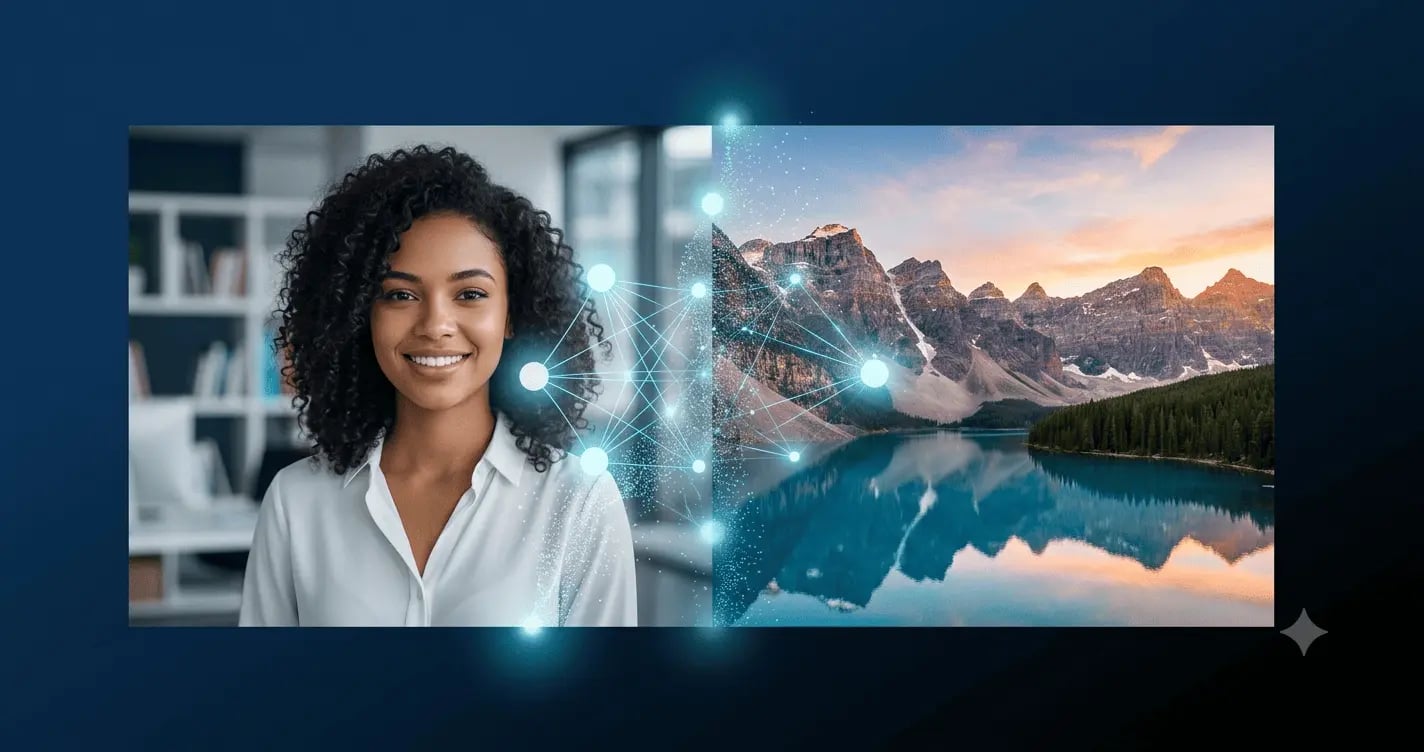
Why AI Image Merging Is Essential in 2026
In 2026, visual content dominates every digital platform. Studies consistently show that content with high-quality visuals receives 94% more engagement than text-only content. Whether you are an e-commerce seller, social media manager, content creator, or marketing professional, the ability to create stunning visual compositions can significantly impact your success.
But here is the problem: traditionally, combining multiple images required extensive Photoshop skills, hours of manual editing, and often resulted in unnatural-looking merges with visible seams, mismatched lighting, and awkward proportions. The barrier to entry was simply too high for most people.
Enter AI-powered image merging — a revolutionary technology that transforms how we merge photos and create visual content. With free AI image combiner tools, you can now merge two images into one seamless composition in seconds, not hours. No design skills required. No expensive software. Just upload, describe your vision, and let AI do the magic.
This comprehensive guide covers everything you need to know about free AI-powered image merging online in 2026. We will explore the best tools, step-by-step workflows, advanced techniques, and expert tips to help you merge two images into one seamlessly — whether you are blending portraits, combining product photos with backgrounds, or creating artistic double exposures.
The quality of your merged image depends heavily on the quality of your source images. Always start with high-resolution photos that have clear subjects, good lighting, and minimal noise. AI can work wonders, but it cannot create detail that does not exist in the original files.
Before diving in, explore our related resources to maximize your AI-powered creative workflow:
- 🎨 AI Image Generator Guide — Create stunning images from text prompts
- 📝 AI Prompt Engineering Guide — Master the art of writing effective prompts
- 🛠️ AI Prompt Optimizer — Refine your prompts for better results
- 🖼️ AI Logo Prompt Generator — Design professional logos with AI
- 📊 AI Infographic Prompts — Create data visualizations effortlessly
What Is AI-Powered Image Merging?
AI-powered image merging is the process of combining visual information from two or more images into a single, coherent output using artificial intelligence models. Unlike traditional compositing in tools like Photoshop — which requires manual selection, masking, and color matching — AI blending analyzes the content, style, and structure of each input and generates a merged result that maintains visual coherence.
The technology draws on several advanced capabilities:
- Image generation models that can create new visual content based on multiple inputs
- Style transfer techniques that harmonize color and lighting across different source images
- Inpainting models that fill gaps and smooth transitions between merged elements
- Edge detection algorithms that identify subject boundaries and blend them naturally
When you use an AI image combiner to merge two images, the AI performs several complex operations simultaneously:
- Analyzes each uploaded image to understand subjects, backgrounds, lighting conditions, and color palettes
- Intelligently blends elements by adjusting colors, shadows, and lighting for seamless transitions
- Follows text prompt instructions to guide how images should be combined
- Optimizes the output for natural-looking results that appear as one genuine photograph
This is fundamentally different from traditional tools that simply layer images on top of each other. AI combiners understand content, match lighting and colors, and create natural-looking merges when you combine two images — producing results that would take hours of manual work in Photoshop.
How to Merge Two Images into One Using Free AI Tools
Merging two images into one using free AI tools is remarkably straightforward. The process has been refined in 2026 to require just three simple steps, making it accessible to complete beginners while still offering powerful controls for professionals.
The fundamental workflow involves uploading your source images, providing guidance to the AI (either through prompts or preset templates), and downloading the final merged result. Most free AI image combiners support common formats like JPG, PNG, and WEBP, with some tools accepting files up to 16-25MB.citeweb_search:3#6web_search:3#8
Here is the basic process that works across nearly all free AI image merging platforms:
Step 1: Upload Your Images Select the two photos you want to merge and upload them to the tool. For best results, choose images with compatible visual characteristics — similar lighting direction, color temperature, and resolution levels produce the most seamless blends.
Step 2: Describe Your Vision Enter a text prompt describing how you want the images combined. Be specific: "A woman from image 1 standing in the forest from image 2, using the warm sunset lighting from image 2" produces far better results than simply "blend these images together."
Step 3: Generate and Download Click generate and let the AI process your images. Most tools deliver results in 10-30 seconds. Review the output, make adjustments if needed, and download your final image in high resolution.
The AI cannot create detail that does not exist. Start with high-resolution images (at least 1080p) that have clear subjects, good lighting, and minimal compression artifacts. Blurry or low-quality source images will produce disappointing merged results regardless of how advanced the AI is.
Best Free Online AI Image Mergers for Perfect Results
The landscape of free AI image merging tools has exploded in 2026. We have tested and evaluated dozens of platforms to bring you the most reliable, high-quality options that deliver professional results without costing a penny.
When evaluating free AI image combiners, we focused on five critical criteria:
- Seamless blending quality — Do the merged images look natural, or do they appear obviously composited?
- Maximum output resolution — Can you download high-resolution results suitable for professional use?
- Ease of use — Is the interface intuitive for beginners while offering advanced controls for pros?
- Supported image count — Can you merge just two images, or does it support multiple photos?
- Free tier generosity — How many merges can you perform before hitting a paywall?
Based on extensive testing, here are the standout free AI image merging tools in 2026:
This comparison is based on hands-on testing conducted in June 2026. Results may vary depending on your specific images and requirements. For the most up-to-date information, visit each tool's official website.
Step-by-Step: Merge Two Photos into One with AI
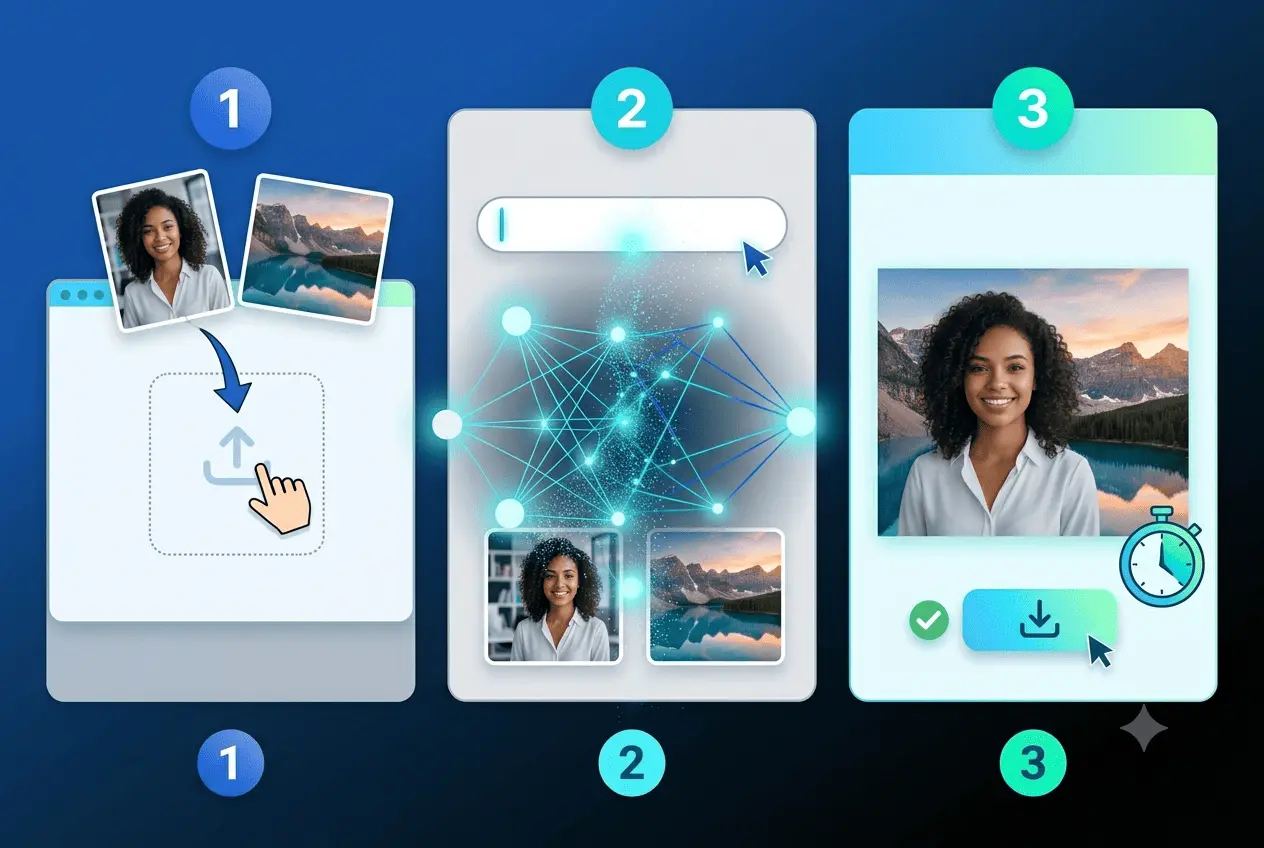
Three simple steps: upload your images, describe your vision, and download the merged result
Let us walk through the exact process of merging two photos into one using a free AI image combiner. We will use a generic workflow that applies to most tools, with specific tips for achieving the best results.
Step 1: Choose Your Source Images Wisely
Start with clear intent. Decide what you want from each source image: a character, an environment, a color palette, a lighting setup, or a texture. The more specific you are about what each image contributes, the better your results will be.
Choose images with compatible visual characteristics:
- Similar lighting direction — both soft or both directional, not a mix
- Compatible color temperatures — both warm, both cool, or intentionally contrasting
- Roughly matched resolution — so the AI does not have to reconcile vastly different detail levels
- Compatible perspective angles — especially if you are merging foreground and background elements
Step 2: Upload to Your Chosen AI Tool
Navigate to your selected free AI image merger. Most tools offer a simple drag-and-drop interface. Upload both images simultaneously — many platforms allow you to select multiple files at once.
Pro tip: Some advanced tools let you assign roles to each image (e.g., "Image 1 = subject, Image 2 = background"). Use this feature when available for more precise control.
Step 3: Craft an Effective Prompt
The prompt is your creative direction. Use it to resolve ambiguities the AI would otherwise guess at: which image's lighting to use, what the background should be, how the elements should interact spatially.
Example of a strong prompt:
"Merge the woman from the first photo into the beach sunset scene from the second photo. Use the warm golden lighting from the sunset image. Keep the woman's facial features exactly as they appear in the original. Make the transition between her hair and the sky natural and seamless."
Example of a weak prompt:
"Combine these two images."
The difference is dramatic. Specific prompts produce results that look professionally composited. Vague prompts produce awkward, obviously AI-generated merges.
Step 4: Configure Advanced Settings (If Available)
Some free AI image combiners offer advanced controls:
- Blend strength — Control how strongly each image influences the output
- Style transfer — Apply the visual style of one image to the content of another
- Aspect ratio — Choose output dimensions (1:1 for Instagram, 16:9 for YouTube, etc.)
- Quality/preset selection — Choose between speed and maximum quality
Step 5: Generate Multiple Variations
AI blending is generative — each attempt produces a unique result. Run three to five variations to give yourself options to choose from. Most free tools allow at least 3-5 generations per day without requiring payment.
Step 6: Review and Refine
Inspect the blended output for common issues:
- Lighting inconsistency — Do elements cast shadows in the same direction?
- Scale mismatch — Are proportions between merged elements realistic?
- Edge artifacts — Check transition areas for visible seams or ghosting
- Color coherence — Does the color palette feel unified across the entire image?
If the first result is not perfect, adjust your prompt or try different reference image combinations. Iteration is key to achieving professional-quality results.
Step 7: Download and Optimize
Export in the format appropriate for your use case:
- Social media: Web-resolution PNG or JPG (1080x1080 or 1920x1080)
- Print materials: High-resolution PNG (300 DPI, minimum 3000px on the longest side)
- Web pages: WebP format for optimal compression and quality
- Further editing: PNG with transparency if you plan to edit in another tool
Why AI-Powered Merging Beats Manual Editing for Two Images
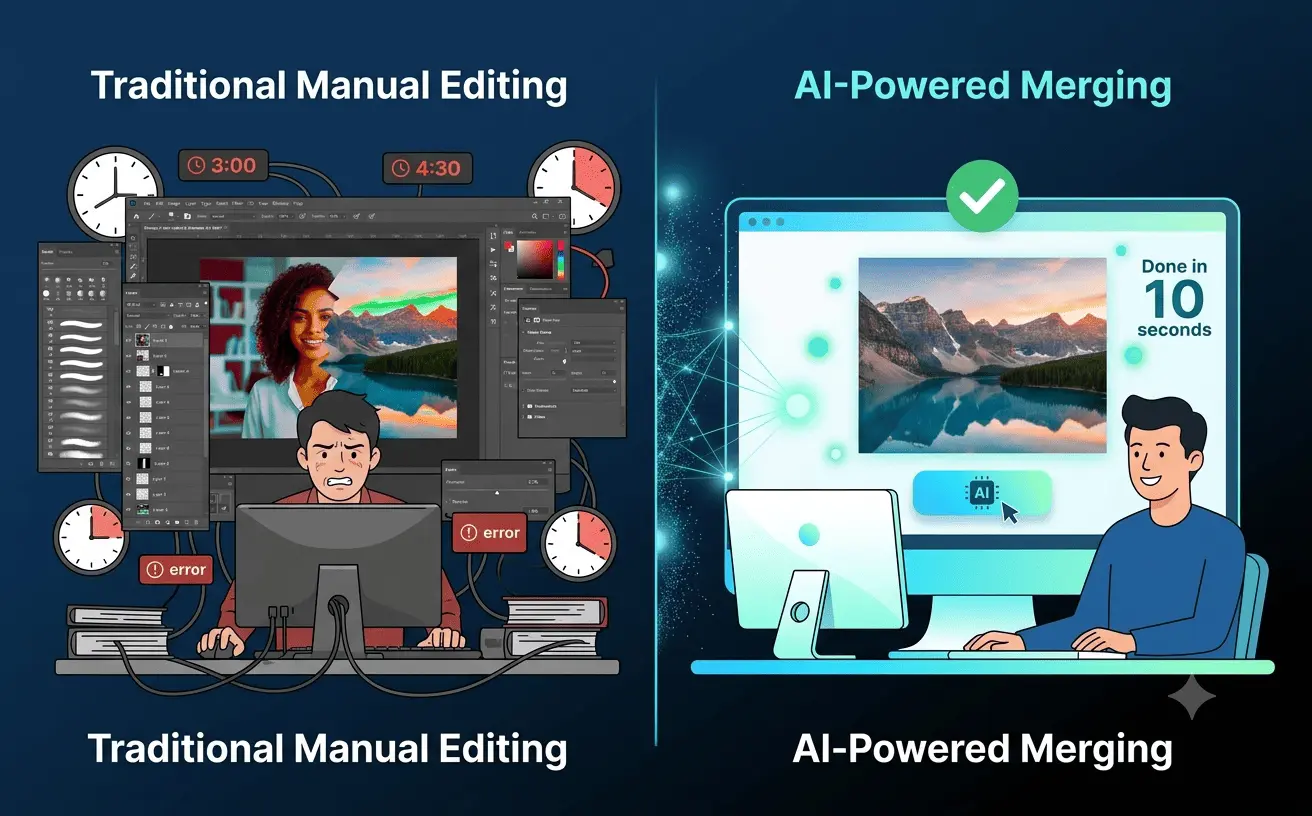
AI merging completes in seconds what takes hours of manual Photoshop work
The question many beginners ask is: "Why should I use AI instead of just learning Photoshop?" The answer lies in efficiency, accessibility, and results.
Speed is the most obvious advantage. What takes hours in Photoshop — selecting subjects with the pen tool, creating precise masks, matching colors with curves and levels, painting transitions by hand — takes 10-30 seconds with AI. For content creators who need to produce dozens of visuals daily, this time savings is transformative.
Accessibility democratizes design. Traditional image compositing requires months or years of training to master. AI image merging requires zero technical skills. A complete beginner can produce results that rival intermediate Photoshop users within minutes of their first attempt.
Quality is surprisingly competitive. While manual compositing still offers pixel-perfect control for specialized work (like high-end product photography), AI blending produces results that are indistinguishable from manual work for most use cases — social media content, marketing materials, personal projects, and even many professional applications.
Consistency across batches is another major advantage. When you need to merge 50 product photos with the same background, AI tools apply the same blending logic consistently, whereas manual editing introduces subtle variations that can look unprofessional.
However, manual editing still has its place. For pixel-perfect work where every edge matters — such as luxury product photography or high-end retouching — Photoshop offers control that AI cannot match. The optimal workflow often combines both: use AI for rapid prototyping and batch processing, then refine critical images manually.
Free vs Paid AI Image Merging: What You Get for $0
Understanding the limitations of free AI image merging tools helps you set realistic expectations and know when upgrading makes sense.
What you get for free in 2026:
- Basic merging functionality — Combine two images with standard blending
- Standard resolution output — Usually 1080p to 2K, sufficient for social media and web use
- Limited daily generations — Most tools offer 3-10 free merges per day
- Watermark-free downloads — Many free tools (like Imgity and VisualGPT) do not add watermarksciteweb_search:3#4web_search:3#6
- Basic prompt support — Text guidance for how images should be combined
- Standard file formats — JPG, PNG, and WEBP support
What you typically do not get for free:
- 4K and higher resolution — Most free tiers cap at 2K
- Batch processing — Merging multiple image sets simultaneously
- Advanced style controls — Fine-tuned lighting, color grading, and texture matching
- Commercial usage rights — Some free tools restrict commercial use (though many paid plans include full rights)
- Priority processing — Faster generation queues
- API access — Integration with other tools and workflows
- Advanced inpainting — Filling complex gaps or removing unwanted elements
The sweet spot: For most users — social media managers, content creators, small business owners — the free tier is more than sufficient. You can produce professional-quality merged images for daily content needs without spending a dollar. Upgrade to paid plans only when you need 4K output, batch processing, or commercial rights for large-scale campaigns.
Rotate between multiple free tools to maximize your daily generation limits. Using 3-4 different free AI image combiners can give you 15-30 free merges per day — enough for most content creation workflows.
Common Mistakes When Merging Two Images (And How AI Fixes Them)
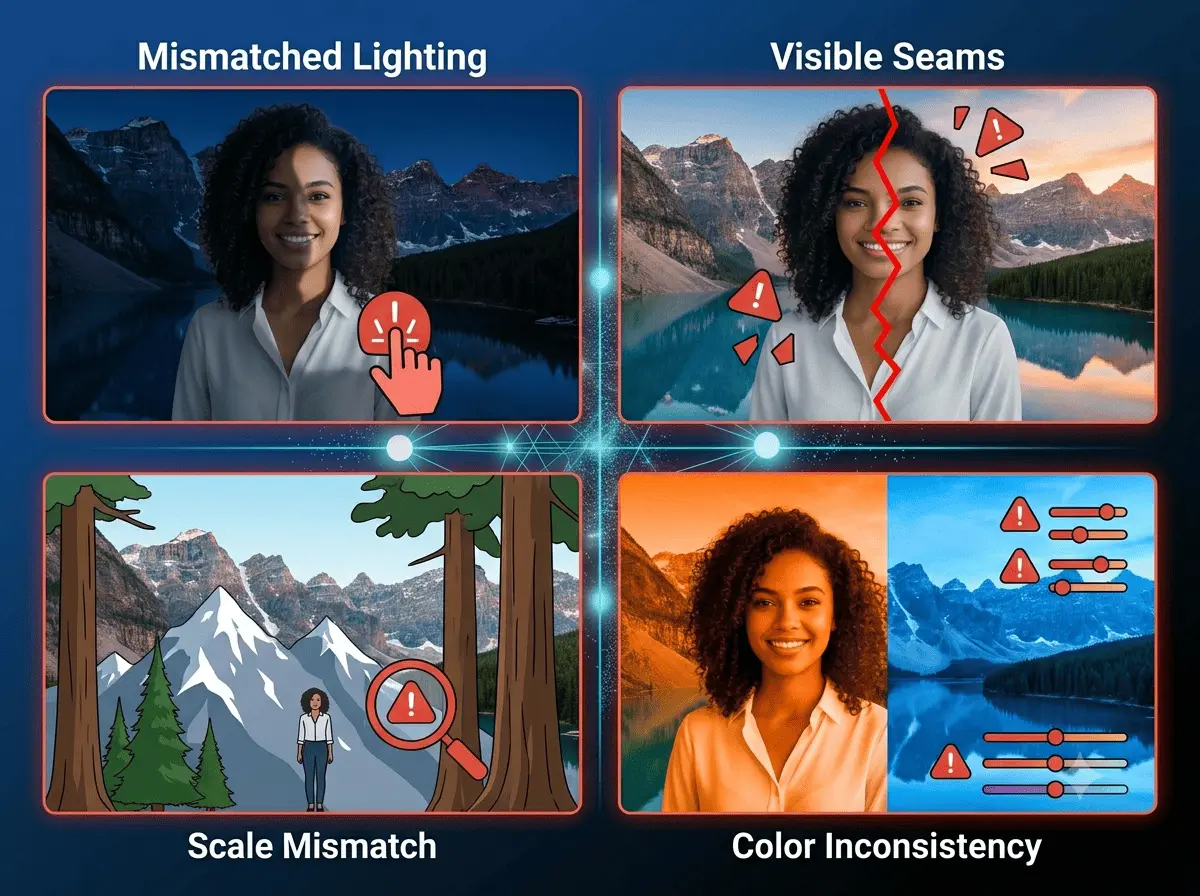
Avoid these 5 common mistakes to achieve professional-quality merged images every time
Even with powerful AI tools, users make predictable mistakes that degrade their results. Here are the most common errors and how to avoid them:
Mistake 1: Mismatched Lighting and Color Temperature
The problem: Combining a brightly lit outdoor portrait with a dark indoor background creates obvious visual inconsistencies. The AI struggles to reconcile conflicting light directions and color temperatures.
How AI fixes it: Advanced tools like Photoshop's Harmonise and specialized AI combiners automatically analyze lighting conditions and adjust colors, shadows, and reflections to create natural-looking composites.citeweb_search:3#2 Specify in your prompt which image's lighting should dominate: "Use the warm sunset lighting from image 2."
Mistake 2: Ignoring Scale and Proportion
The problem: A person from one photo appears giant compared to objects in the background image, or vice versa. This creates an obviously fake composite.
How AI fixes it: Modern AI image combiners analyze relative proportions and can auto-adjust scale. However, you should still verify proportions in the final output. If the AI gets it wrong, rephrase your prompt to specify relative sizes: "The woman should appear at natural scale within the landscape."
Mistake 3: Over-Reliance on Default Settings
The problem: Using the tool's default settings without providing any prompt guidance. The AI has to guess your intent, often producing generic or awkward results.
How AI fixes it: Always provide a detailed prompt. The more specific you are about what you want, the better the AI performs. Mention what should stay the same, what should change, and the desired style.
Mistake 4: Using Low-Quality Source Images
The problem: Uploading blurry, compressed, or low-resolution images and expecting the AI to create a masterpiece.
How AI fixes it: It cannot. AI enhances and blends, but it cannot invent detail. Always start with the highest quality source images available. If your only source is low-quality, consider using an AI image upscaler first.
Mistake 5: Not Checking Edge Transitions
The problem: Accepting the first generated result without inspecting the boundaries between merged elements.
How AI fixes it: Generate multiple variations (3-5 is ideal) and carefully compare edge transitions. Choose the version with the most natural blending. Most free tools allow you to generate several options without extra cost.
Top 5 Free AI Tools to Merge Two Pictures into One

We tested 20+ tools to find the 5 best free AI image combiners for every use case
After extensive testing, these five tools stand out as the best free options for merging two pictures into one seamlessly in 2026:
1. Image Combiner AI — Best Overall for Realistic Merging
Why it wins: Specialized exclusively in photo merging, delivering the most natural results for portraits and family photos. Supports 2-9 images with true 4K output.citeweb_search:3#1
Key features:
- Ultra-high resolution: 1K, 2K, and true 4K downloads
- Rich style templates: couples, family memories, holidays, and more
- Automatic photo restoration during merging
- Video generation from merged photos
- 100% free preview with realistic edge blending
Best for: Family portraits, couple photos, memorial images, and any scenario requiring the most natural-looking merge possible.
Limitation: Does not include manual text or vector drawing tools — it is purely a merging specialist.
2. Fotor AI — Best All-in-One Solution
Why it stands out: Combines powerful merging with comprehensive photo editing tools, color grading, and artistic filters.citeweb_search:3#1
Key features:
- Multiple AI image models to choose from
- Photo enhancement and color grading tools
- Up to 4K resolution output
- Various artistic styles and filters
Best for: Users who want merging plus editing in one platform.
Limitation: Free version is heavily restricted; advanced AI models require paid credits.
3. Media.io AI Image Combiner — Best for Quick Conversions
Why it works: Simple interface, fast processing, and integration with a broader multimedia toolkit.citeweb_search:3#0
Key features:
- Supports JPG, JPEG, and PNG formats
- Prompt-guided merging for precise control
- Product mockup and lifestyle scene creation
- Watermark-free HD exports
Best for: E-commerce sellers, product photographers, and quick marketing visuals.
Limitation: AI fusion lacks depth for complex scenes; free users face strict limitations.
4. Recraft AI — Best for Professional Designers
Why designers love it: Up to 30 free generations per day with professional-grade output and brand style integration.citeweb_search:3#7
Key features:
- Frame layer feature for effortless positioning
- Brand style upload for on-brand images
- Vector art and illustration generation
- Precise text placement and element control
Best for: Professional designers, brand agencies, and marketing teams.
Limitation: More complex interface than beginner-friendly tools.
5. VisualGPT.io — Best for E-Commerce and Marketing
Why it matters: Specifically optimized for product displays, social media visuals, and marketing campaigns.citeweb_search:3#6
Key features:
- 4.9+ user rating with 50M+ pictures created
- Trusted by 800+ organizations
- Automatic lighting, shadow, and perspective matching
- Supports up to 4 images simultaneously
Best for: Online stores, social media managers, and marketing professionals.
Limitation: Struggles with complex human portraits; better suited for products and simple scenes.
Preserve Quality & Backgrounds When Merging Images with AI
Maintaining image quality throughout the merging process requires attention to several technical details:
Resolution Preservation
Always start with the highest resolution source images available. If you merge two 1080p images, your output cannot exceed 1080p without losing quality. For print-ready results, source images should be at least 3000px on the longest side.
Best practice: Upload images at the maximum resolution the tool supports. Most free AI combiners accept files up to 16-25MB.citeweb_search:3#6web_search:3#8
Background Handling
When merging a subject with a new background, the AI must:
- Remove the original background cleanly
- Match the subject's lighting to the new environment
- Add appropriate shadows and reflections
- Blend edges where hair, fur, or transparent materials meet the background
Prompt techniques for better backgrounds:
- "Place the subject from image 1 into the background from image 2. Match the lighting direction and color temperature of the background. Add natural shadows beneath the subject."
- "Blend the edges of the subject's hair with the sky background using soft transitions."
Color Harmonization
The most common quality issue in merged images is color inconsistency. Advanced tools like Photoshop's Harmonise automatically match lighting, shadows, colors, and reflections between subject and background.citeweb_search:3#2 When using free AI tools, specify color preferences in your prompt: "Use the cool blue tones from image 2 as the dominant color palette."
Format Selection for Output
- PNG: Best for preserving quality; supports transparency; larger file sizes
- JPG: Good for photos; smaller file sizes; some quality loss from compression
- WEBP: Optimal for web use; excellent compression with quality preservation; supported by most modern browsers
For web publishing, convert your final merged image to WEBP format. It typically reduces file size by 25-35% compared to JPG while maintaining equivalent visual quality.
Use Cases: Merge Portraits, Landscapes, or Product Photos

From e-commerce product photos to touching memorial portraits - AI merging serves diverse needs
AI image merging serves diverse practical applications across industries. Here are the most impactful use cases in 2026:
E-Commerce Product Photography
Combine product shots with various lifestyle backgrounds to create compelling display images. Instead of photographing every product in multiple settings, merge a single product photo with different lifestyle backgrounds. This approach saves thousands of dollars in photography costs while enabling rapid A/B testing of different visual contexts.citeweb_search:3#6
Example workflow:
- Photograph your product on a clean white background
- Source 5-10 lifestyle backgrounds (office, home, outdoor, etc.)
- Use AI to merge the product into each background
- Test which context drives higher conversion rates
Social Media Content Creation
Create unique visuals for Instagram, Facebook, and TikTok by blending brand imagery with trending visual styles. Merge portraits with artistic backgrounds, combine user-generated content with branded elements, or create eye-catching collages that stop the scroll.citeweb_search:3#7
Pro tip: Use our AI Social Media Content Generator alongside image merging to create complete post packages — image + caption + hashtags.
Memorial and Family Photography
One of the most emotionally impactful uses: merge photos of deceased loved ones with current family portraits. Specialized tools like Image Combiner AI offer templates specifically designed for this purpose, with automatic restoration of old photos during the merge process.citeweb_search:3#1
Marketing and Advertising Campaigns
Generate high-quality composites for advertisements, promotional posters, and creative campaigns. Adjust lighting and perspective to produce professional results suitable for online ads, email campaigns, and print materials.citeweb_search:3#6
Concept Art and Pre-Visualization
For video production teams, blend reference images to create pre-visualization assets. Combine a location reference with a character concept and a lighting reference to produce a single frame that shows the intended look of a scene. Use this as a starting point for storyboard development or video generation.
Real Estate and Interior Design
Merge empty room photos with furnished interiors to show potential buyers or renters how a space could look. This virtual staging approach costs a fraction of traditional staging while allowing multiple design options.
Advanced Techniques: Prompt Engineering for Image Merging
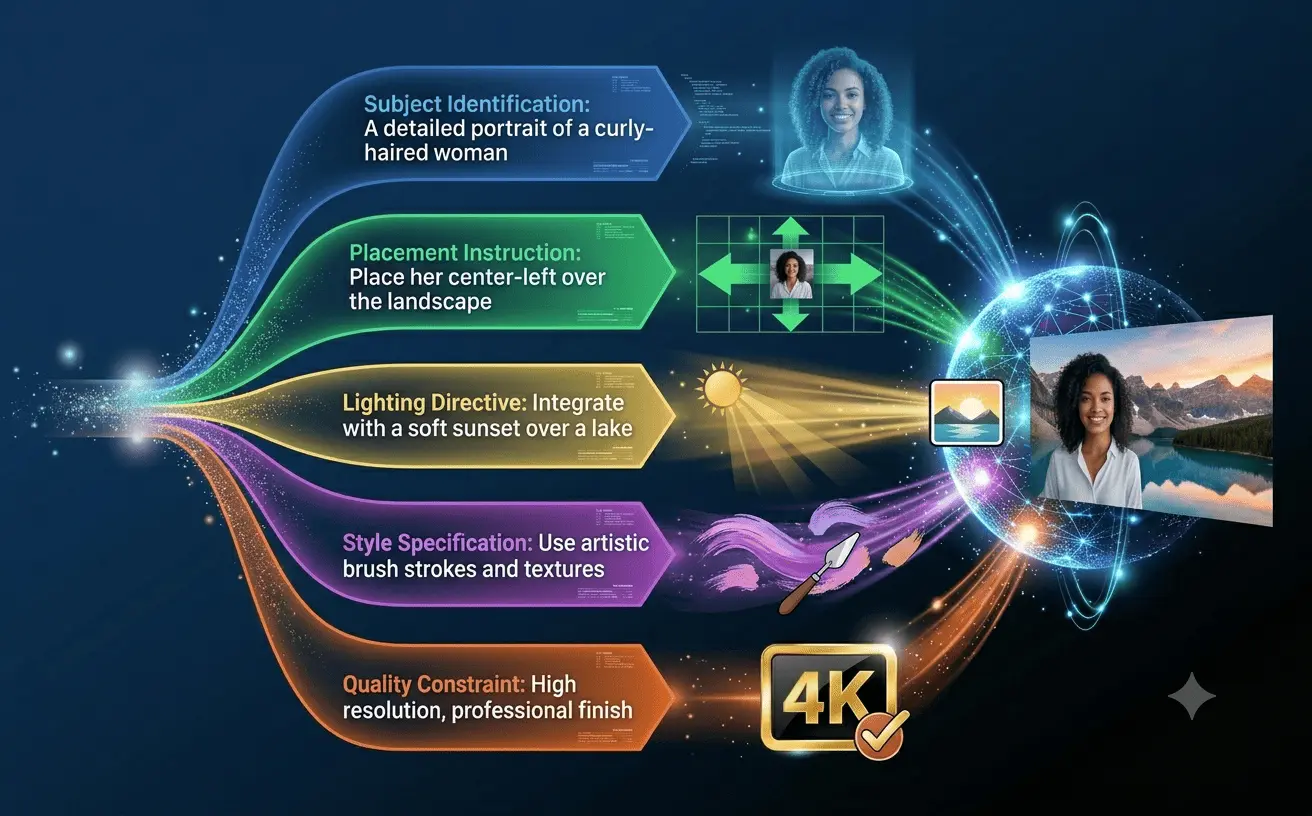
Master these 5 prompt elements to transform your AI merging from amateur to professional
Mastering prompt engineering dramatically improves your AI image merging results. The difference between an amateur and a professional output often comes down to prompt quality.
The Anatomy of an Effective Merge Prompt
A well-crafted prompt for image merging contains five elements:
- Subject identification — Which element from which image
- Placement instruction — Where the subject should appear
- Lighting directive — Which image's lighting to follow
- Style specification — Realistic, artistic, cinematic, etc.
- Quality constraint — Resolution, detail level, or specific visual characteristics
Example of a complete prompt:
"Take the woman from image 1 (wearing the red dress) and place her on the balcony from image 2 (the Mediterranean sea view). Use the golden hour lighting from image 2. Maintain photorealistic style. Preserve the woman's facial features exactly as they appear in the original. Ensure her shadow falls naturally on the balcony floor matching the sun direction in image 2. Output in 4K resolution."
Negative Prompting
Some advanced tools support negative prompts — instructions about what NOT to include. This helps avoid common AI artifacts:
"...Do not change the woman's face. Do not add extra elements not present in either image. Avoid blurry edges. No cartoon or illustrated style."
Multi-Image Reference Weighting
When merging more than two images, you can often control how strongly each image influences the output. If you want the background to dominate the mood while keeping a subject's exact appearance, assign higher weight to the background image.
Example:
"Image 1 (subject) weight: 0.7. Image 2 (background) weight: 1.0. Image 3 (lighting reference) weight: 0.9."
Iterative Refinement
The most advanced technique is iterative refinement:
- Generate an initial merge with a basic prompt
- Identify specific issues (lighting, edges, proportions)
- Generate again with a targeted prompt addressing those issues
- Repeat until satisfied
This process mirrors professional retouching workflows but operates in minutes instead of hours.
For deeper mastery of prompt engineering, explore our ChatGPT Prompt Optimization Guide and Prompt Engineering Masterclass.
SEO for Merged Images: Alt Text, Compression, and WebP
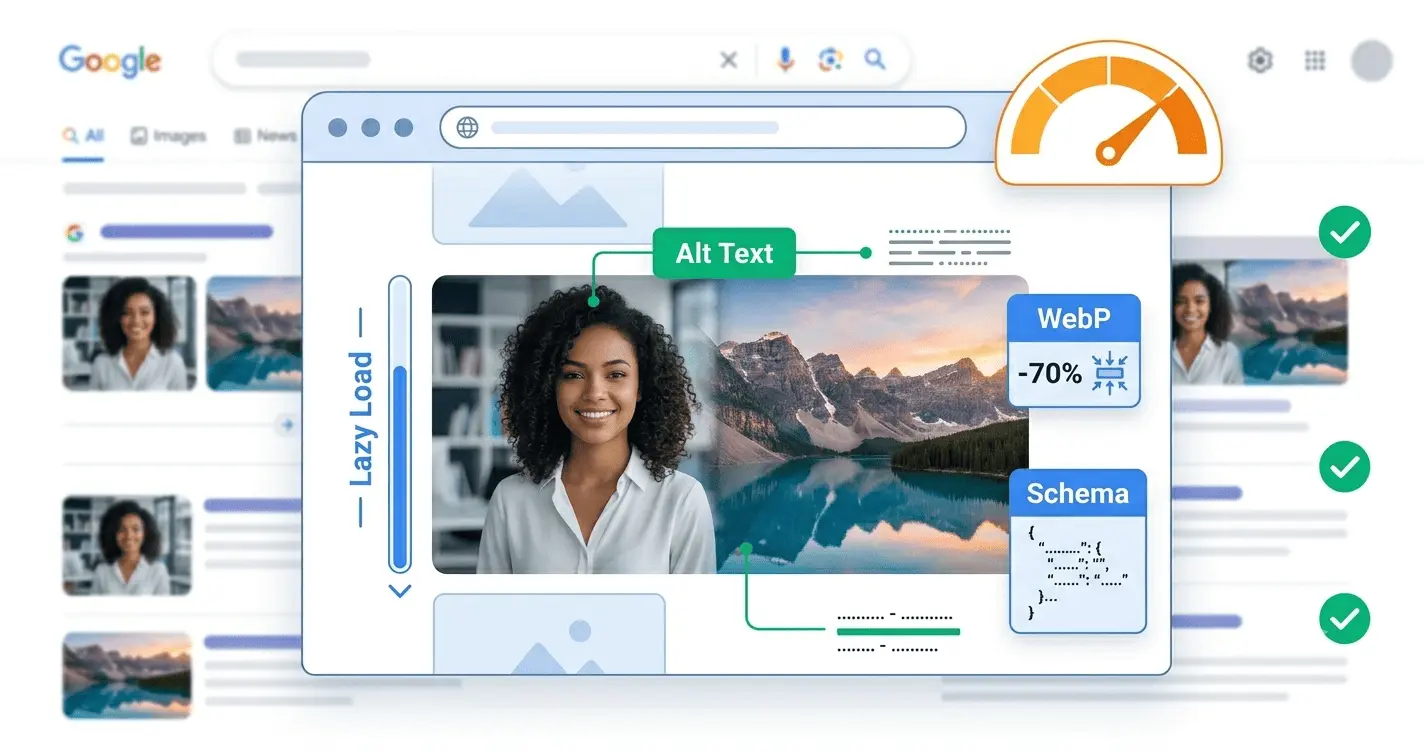
Proper SEO ensures your merged images rank in Google Images and drive organic traffic
If you are using merged images on websites or blogs, optimizing them for search engines is crucial. Search engines cannot "see" images — they rely on technical signals to understand and rank visual content.
Alt Text Optimization
Alt text (alternative text) describes an image's content for screen readers and search engines. For merged images, write descriptive alt text that explains what the image shows:
Bad: "merged-image-final.jpg" Good: "Professional product photo of wireless earbuds merged with modern office background using AI image combiner" Better: "AI-merged product photography showing black wireless earbuds on a minimalist wooden desk with natural window lighting — created using free online image merging tool"
Include your target keywords naturally: "merge two images," "AI image combiner," and "free online image merging" where they fit the description.
File Name SEO
Before uploading, rename your files with descriptive, keyword-rich names:
Bad: "IMG_2026_06_12_final_v3.png" Good: "ai-merged-portrait-beach-background-seamless-blend.png"
Compression Without Quality Loss
Large image files slow down page loading, hurting both user experience and SEO rankings. Use these compression strategies:
- Convert to WebP: Reduces file size by 25-35% compared to JPG with equivalent quality
- Use responsive images: Serve different sizes based on device screen width
- Implement lazy loading: Load images only when they enter the viewport
- Compress with tools: TinyPNG, Squoosh, or ImageOptim before uploading
Structured Data for Images
Implement ImageObject schema markup to help search engines understand your images:
{
  "@context": "https://schema.org",
  "@type": "ImageObject",
  "contentUrl": "https://yoursite.com/images/ai-merged-product-photo.webp",
  "description": "AI-merged product photography showing wireless earbuds in lifestyle setting",
  "name": "AI Merged Product Photo - Wireless Earbuds",
  "author": {
    "@type": "Organization",
    "name": "Your Brand Name"
  }
}
For comprehensive SEO guidance, visit our AI SEO Content Generator and AI SEO Content Guide.
Mobile AI Image Merging: Best Free Apps for iOS & Android
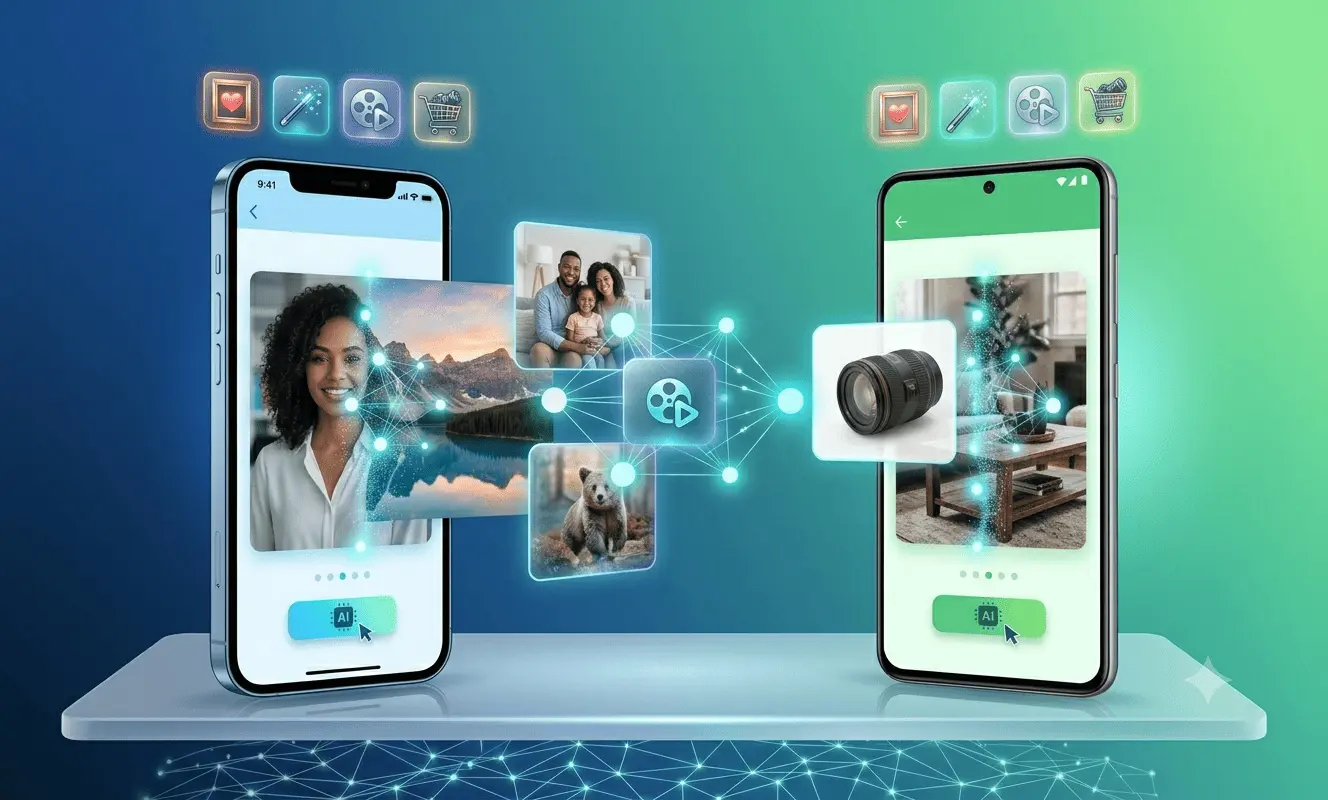
Professional AI merging is now available on your smartphone - no desktop required
Mobile AI image merging has matured significantly in 2026. You no longer need a desktop computer to create professional merged images. Here are the best free mobile options:
iOS Apps
Photoshop Express (Free) Adobe's mobile app includes AI-powered Harmonise features that let you blend subjects into new backgrounds with automatic lighting matching. Available on iPhone with the same technology as the desktop version.citeweb_search:3#2
Canva (Free) The mobile version of Canva includes Magic Edit for merging images, plus thousands of templates optimized for social media dimensions. The free tier is generous for casual use.
Imgity Mobile The mobile version of Imgity's AI image combiner supports 2-8 images with the same Nano Banana Pro engine as the desktop version. Processing takes 10-30 seconds on modern iPhones.
Android Apps
PicsArt AI (Free) Offers AI-powered background removal and merging with a large community of creators sharing techniques. The free tier includes basic merging with ads.
PhotoRoom (Free) Specialized for product photography merging. Excellent for e-commerce sellers who need to quickly place products on different backgrounds.
Fotor Mobile (Free) The Android version of Fotor includes the same AI merging capabilities as the desktop tool, with touch-optimized controls for precise adjustments.
Performance tip: For best results on mobile, use Wi-Fi rather than cellular data. Uploading high-resolution images and processing them through AI requires significant bandwidth and processing power.
Batch Merging: How to Combine Multiple Images at Once
For professionals who need to merge dozens or hundreds of images, batch processing is essential. While most free tools limit you to single merges, several strategies enable efficient batch workflows:
Strategy 1: Use Tools with Batch Support
Some free tools offer limited batch processing:
- VisualGPT.io supports up to 4 images in a single merge operationciteweb_search:3#6
- Image Combiner AI supports 2-9 images simultaneouslyciteweb_search:3#1
- Recraft AI allows frame layering for complex multi-image compositionsciteweb_search:3#7
Strategy 2: Template-Based Automation
Create a standard template for repeated merges:
- Define your base background image
- Prepare all subject images with consistent sizing
- Use the same prompt structure for each merge
- Process in batches of 5-10 during free daily limits
Example e-commerce workflow:
- Background: Your branded lifestyle scene
- Subjects: 50 product photos on white backgrounds
- Prompt template: "Place the product from the uploaded image into the lifestyle scene. Match the lighting to the background. Maintain photorealistic style. Add natural shadows beneath the product."
Strategy 3: API Integration (Developer-Friendly)
For technical users, some platforms offer API access (usually on paid plans) that enables full automation. You can script the entire workflow:
- Upload batch of images
- Apply standardized prompts
- Download results automatically
- Process next batch
Free alternative: Use browser automation tools like Puppeteer or Playwright to script interactions with free web-based tools. This requires technical knowledge but costs nothing.
Strategy 4: Spreadsheet-Driven Workflows
For non-technical users, create a spreadsheet tracking:
- Image pairs to merge
- Specific prompt variations
- Intended use (social media, web, print)
- Processing status
This organized approach helps you maximize free daily limits across multiple tools without losing track of your projects.
Commercial Use: Copyright, Licensing, and Ethical Guidelines
Using AI-merged images for commercial purposes requires understanding legal and ethical boundaries. Here is what you need to know in 2026:
Copyright and Ownership
Your source images: You must own the copyright or have explicit permission to use any images you upload for merging. This includes stock photos (check license terms), client photos, and user-generated content.
AI-generated output: Copyright status for AI-generated images varies by jurisdiction. In the United States, purely AI-generated works currently lack human authorship required for copyright protection. However, images where you provide significant creative direction through prompts and curation may qualify for copyright. Consult legal counsel for high-value commercial use.
Tool-specific terms: Most free AI image combiners grant you rights to use generated images, but terms vary:
- Imgity: Full commercial usage rights included with paid plans
- Media.io: All generated outputs are copyright-free for personal or commercial useciteweb_search:3#0
- Recraft: Commercial rights typically included with professional plans
Ethical Guidelines
Consent is mandatory: Only upload images of people who have given explicit consent. This applies to employees, customers, models, and public figures. Using someone's likeness without consent violates privacy rights and can result in legal action.
Transparency: When using AI-merged images in commercial contexts (advertising, product listings), consider disclosing that AI was used in the creation process. This builds trust with consumers and may be legally required in some jurisdictions.
Avoid deception: Do not use AI merging to create misleading images. Examples to avoid:
- Merging a celebrity's face with a product endorsement they never made
- Creating fake evidence or documentation
- Generating misleading "before and after" images for health or beauty products
Responsible use pledge:
- Do not impersonate real people for fraud, harassment, or deception
- Do not upload private, sensitive, or copyrighted material without authorization
- When in doubt, get permission before editing and sharing images
The Future of AI Image Merging: What's Coming in 2027
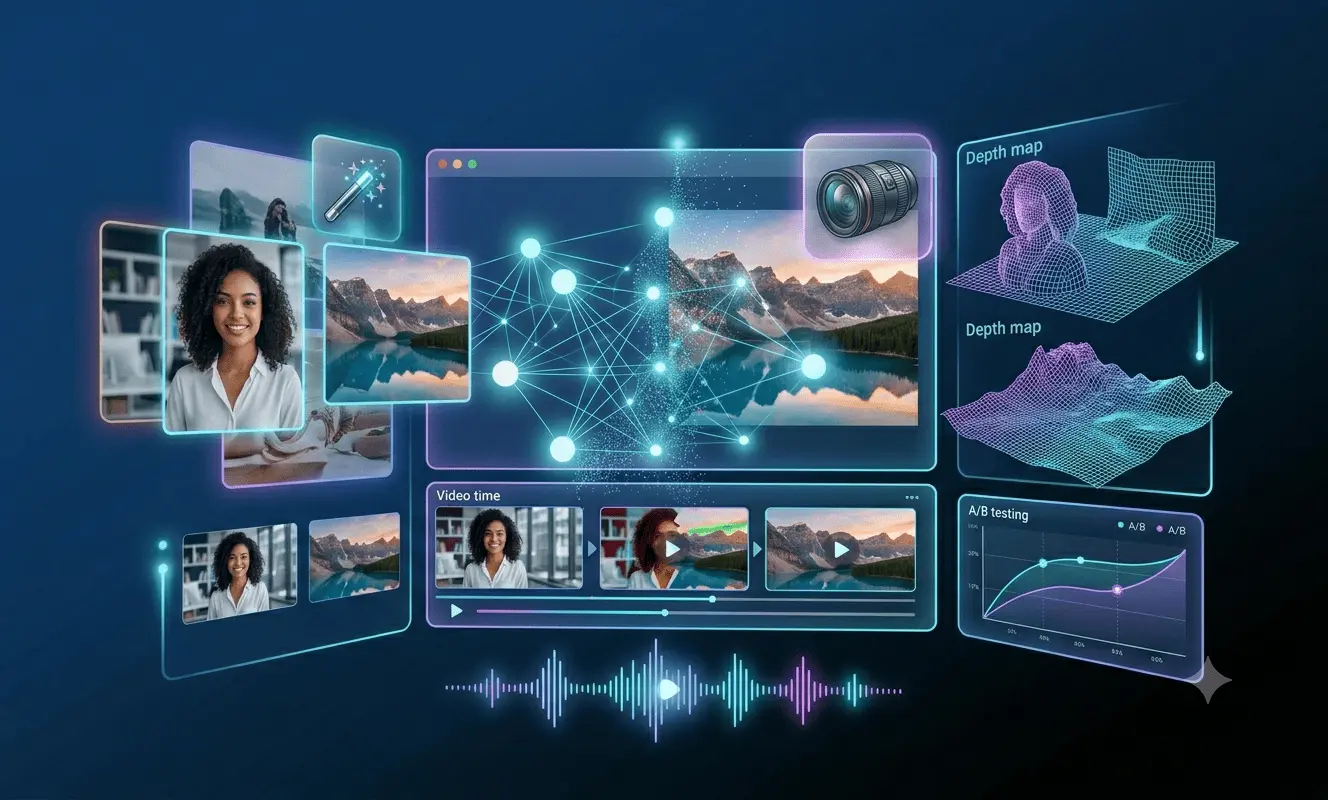
From real-time video merging to voice-controlled composition - the future is transformative
AI image merging technology is evolving rapidly. Here are the trends and capabilities expected to shape the field in 2027:
Real-Time Video Merging
The next frontier is merging not just still images but video frames. Imagine placing a subject from one video into a scene from another, with AI matching motion, lighting changes, and camera movement across the entire sequence. Early versions of this technology are already in development for film and advertising production.
3D-Aware Merging
Current tools merge 2D images. Future tools will understand 3D spatial relationships, enabling more accurate perspective matching, depth-appropriate shadows, and realistic occlusion (objects correctly blocking other objects based on depth).
Style-Consistent Campaign Generation
Marketing teams will be able to upload a brand style guide (colors, fonts, visual language) and have AI automatically apply that style to all merged images. This ensures visual consistency across hundreds of campaign assets without manual oversight.citeweb_search:3#7
Voice-Controlled Merging
Instead of typing prompts, you will describe your desired merge verbally: "Put the woman from the first photo into the Paris street scene from the second photo, make it look like golden hour, and keep her wearing the same blue dress." The AI will interpret and execute complex verbal instructions.
Automated A/B Testing
AI will generate multiple merge variations and automatically test them with target audiences, learning which visual combinations drive the highest engagement and conversion rates. This closes the loop between creation and performance optimization.
Integration with AI Content Pipelines
Merged images will flow directly into AI video generators, social media schedulers, and ad platforms. The entire workflow from image creation to publication will be automated, with humans providing creative direction at strategic points.
Troubleshooting: When AI Merging Doesn't Work Perfectly
Even the best AI tools produce imperfect results sometimes. Here is how to diagnose and fix common problems:
Problem: Visible Seams at Subject Edges
Cause: The AI struggled with complex edges (hair, fur, transparent materials) or conflicting colors between subject and background.
Fix:
- Rephrase your prompt to specify edge treatment: "Blend the subject's hair softly into the sky background"
- Try a different tool — some handle edges better than others
- Use a tool with inpainting capabilities to manually touch up problem areas
- Generate 3-5 variations and choose the one with cleanest edges
Problem: Mismatched Lighting
Cause: The source images have fundamentally different lighting directions or color temperatures.
Fix:
- Explicitly specify which image's lighting to follow: "Use the warm sunset lighting from image 2 as the dominant light source"
- Choose source images with more similar lighting conditions
- Use Photoshop's Harmonise (or similar advanced tools) for post-merge correctionciteweb_search:3#2
Problem: Distorted Faces or Features
Cause: The AI over-processed facial features during the merge, especially when combining portraits with complex backgrounds.
Fix:
- Add negative prompt: "Do not change the subject's face. Preserve all facial features exactly as in the original image."
- Use tools specifically designed for portrait merging (Image Combiner AI excels here)
- Lower the blend strength for the subject image to preserve its characteristics
Problem: Low-Resolution Output
Cause: The free tier limits resolution, or the source images were too small.
Fix:
- Upgrade to a paid plan for 4K output
- Use an AI image upscaler on the final result (tools like Upscayl or Topaz Gigapixel)
- Start with higher-resolution source images
Problem: AI Ignores Part of the Prompt
Cause: The prompt was too complex or contained conflicting instructions.
Fix:
- Simplify your prompt to 2-3 core instructions
- Break complex merges into steps: first merge background elements, then add the subject
- Use bullet points or numbered lists in prompts for tools that support structured input
FAQs About Free Online AI-Powered Image Merging
You might also like
A comprehensive guide to the best AI prompts for professional logo design, featuring ready-made templates, tool comparisons, and practical tips for every business type.
Discover Labnana AI, a free artificial intelligence image generator that converts text into professional images in seconds. Learn how Text-to-Image works, best practices, and the complete step-by-step guide.
Everything you need to know about Google's Nano Banana: version history, free access, comparing Nano Banana Pro, Nano Banana 2, and Nano Banana 2 Lite, plus top applications in e-commerce, marketing, and design.
55+ free ready-to-use AI prompts for digital advertising — Facebook, Google, TikTok, Instagram, and LinkedIn with real results